
What is Git?#
Git is a version control system used by developers to develop software together. The main function of Git is to manage versions of program source code by marking which lines and code need to be added or changed.
Download Git#
Please open the official Git website at git-scm.com. Then download Git according to your computer architecture. If you are using 64-bit, download the 64-bit version. Likewise, if you are using 32-bit.
Steps to Install Git on Windows#
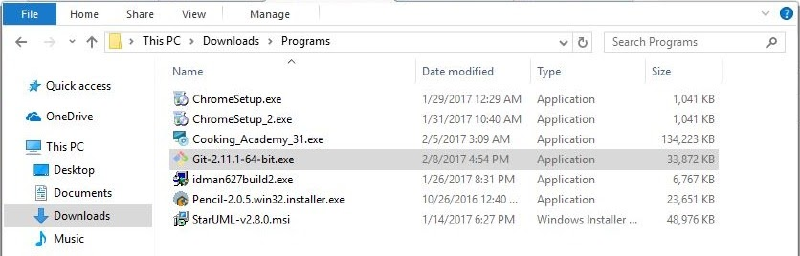
Alright, let’s begin the installation ritual. Please double-click the downloaded Git installer file.
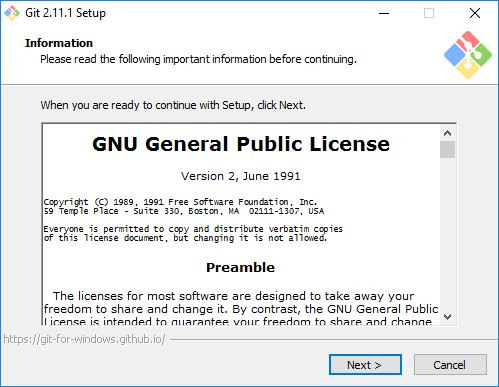
The Git license information will appear. Click Next > to continue.
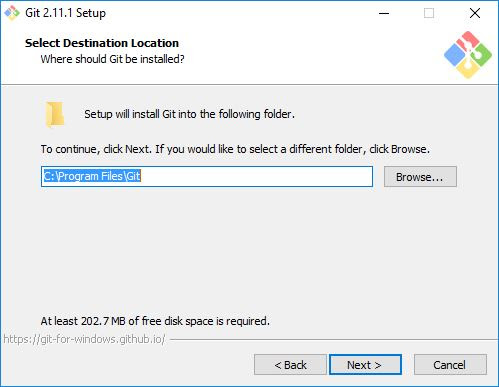
Next, choose the installation location. Leave it as default, then click Next >.
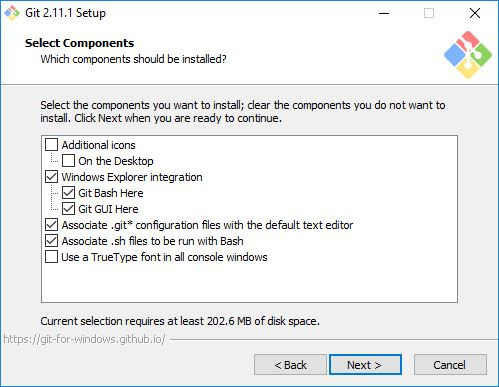
Next is component selection. Leave it as it is and then click Next >.
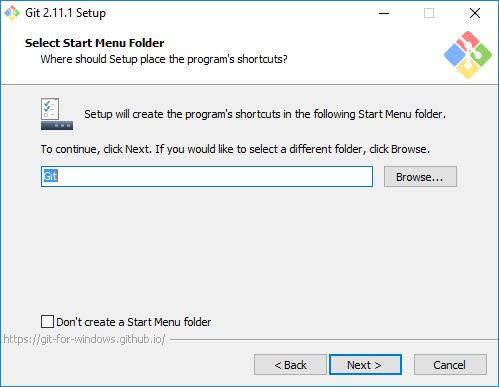
Next is the Start Menu folder selection. Click Next >.
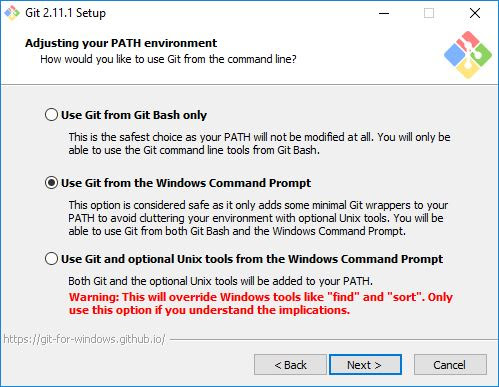
Next is the PATH environment setup. Select the middle option so the git command can be recognized in Command Prompt (CMD). Then click Next >.
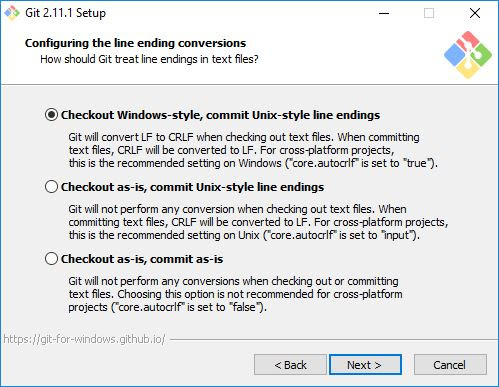
Next is line ending conversion. Leave it as default, then click Next >.
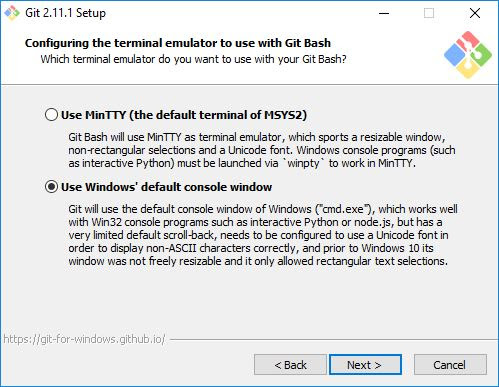
Next is terminal emulator selection. Choose the option at the bottom, then click Next >.
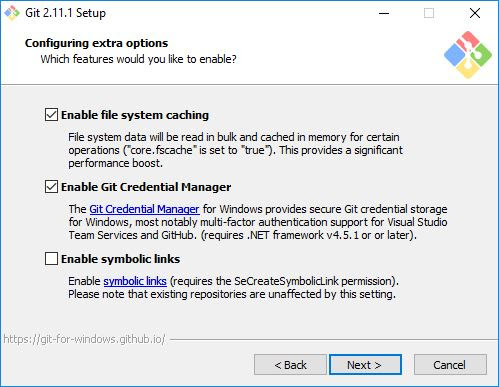
Next is extra options selection. Just click Next >.
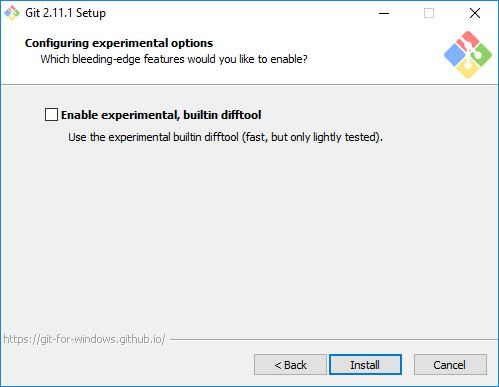
Next is the experimental options selection. Just click Install to begin the installation.
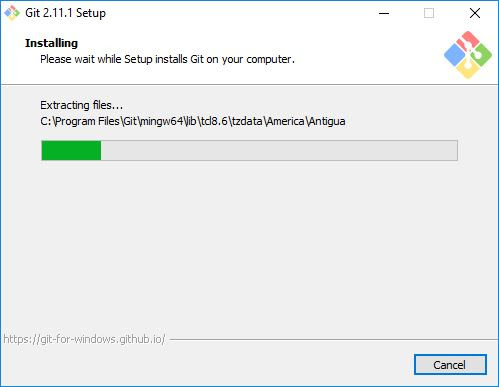
Wait a moment while the installation is in progress.
Once finished, we can click Finish.
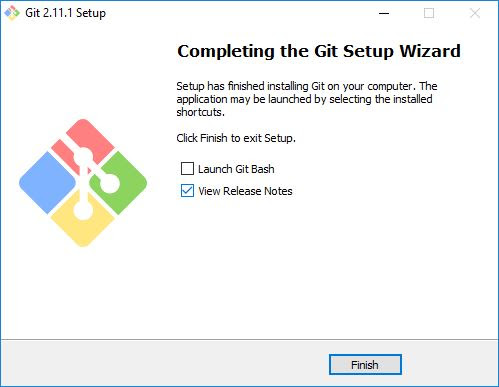
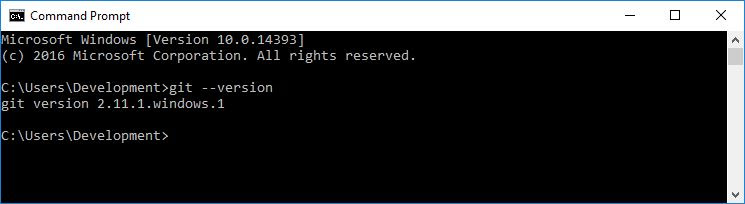
Congratulations, Git is now installed on Windows. To test it, open CMD or PowerShell and type the command git --version.
Initial Configuration You Need to Do#
There are several configurations that must be done before starting to use Git, such as setting the name and email.
Please configure it using the following commands.
git config --global user.name "Your Name"
git config --global user.email "Your Email"
Example:
git config --global user.name "0zunu"
git config --global user.email "fidzlieazriel@gmail.com"
Then verify the configuration with the command:
git config --listIf it appears as shown in the following image, the configuration was successful.
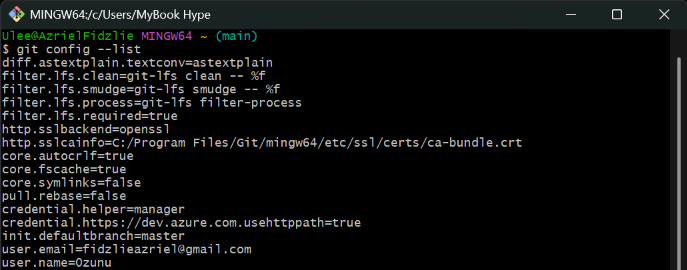
The core.editor configuration is optional, while the name and email are required.
If you have a GitHub, GitLab, Bitbucket, or other account…
then your username and email should match that account to make integration easier.